

This guide walks you through the basics of a full integration of GrowthBook for both feature flagging and experimentation.Documentation Index
Fetch the complete documentation index at: https://growthbook-preview.mintlify.app/llms.txt
Use this file to discover all available pages before exploring further.
Set up GrowthBook
You can either self-host GrowthBook or use our Cloud. For the easiest setup, sign up for a free Cloud account. If you prefer to self-host, follow the instructions here or on our GitHub page. After creating your account, it will walk you through the initial setup steps, including integrating one of our SDKs into your application.Feature Flags
1Integrate the GrowthBook SDK
As part of the initial setup, you should have created an initial SDK Connection. If not, you can do so now by going to SDK Configuration → SDK Connections. Then, click Add SDK Connection. Follow the directions based on your application’s language and platform. The full SDK docs are also available if you want to dive deeper. 1Create a feature flag
On the Features page, create your first feature flag.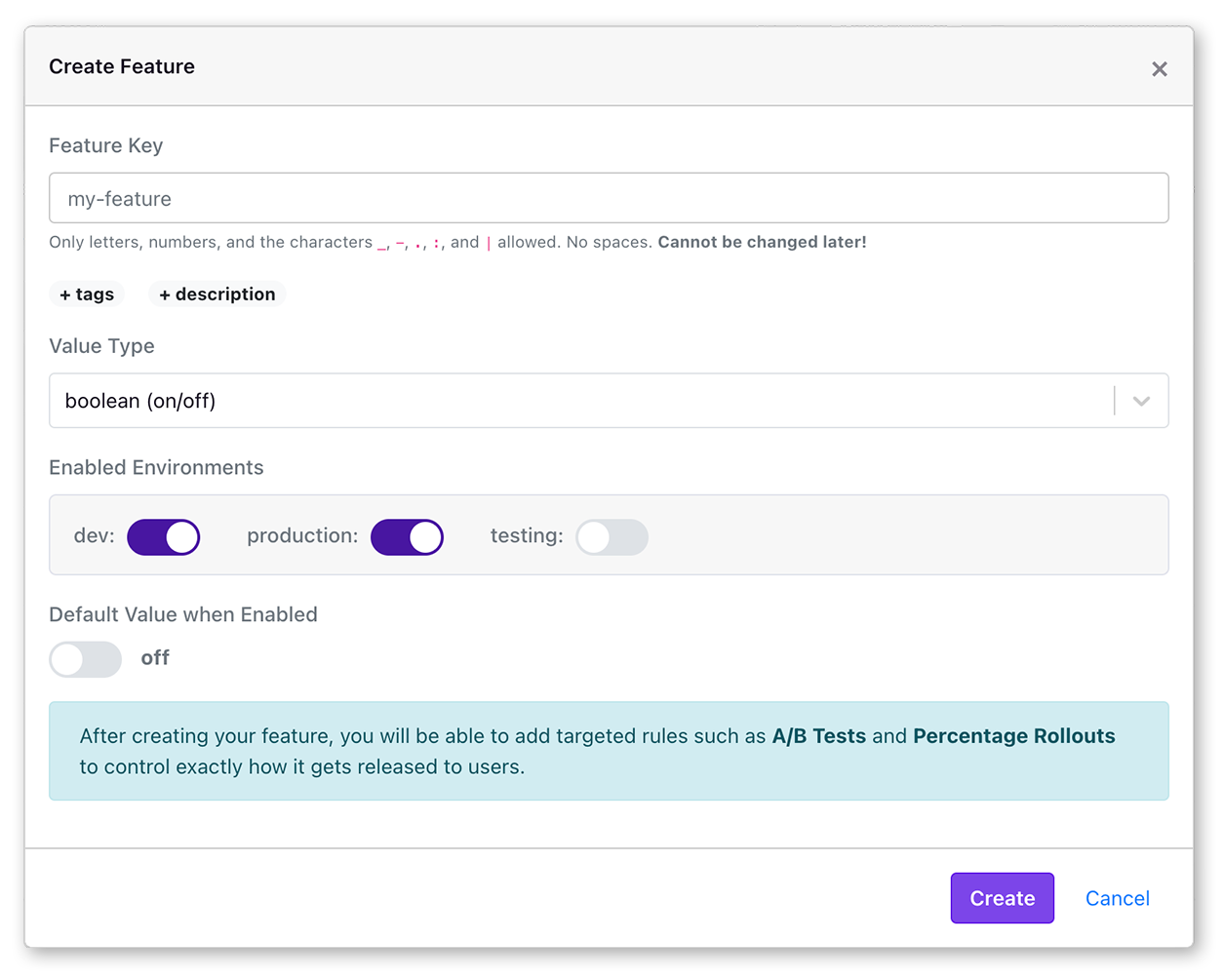
on or off for everyone.
1
Use the feature in your application
When you create your first feature, you’ll see instructions on how to use it in your application. Here’s an example using our JavaScript SDK:Experiment Analysis
1Set up your data source
GrowthBook connects to a data warehouse to query your experiment data. You have two options: Fastest path: Managed Warehouse. If you don’t have an existing data warehouse, our Managed Warehouse gets you running quickly. We provision a fully managed database, create starter metrics, and provide built-in event tracking. No infrastructure setup required. Bring Your Own Warehouse. If you already have event data in BigQuery, Snowflake, Databricks, Redshift, or another warehouse, you can connect it directly. GrowthBook supports almost any schema structure with a bit of configuration and only needs read-only access.See our data path comparison for help deciding.
Add a metric or two
GrowthBook needs to know what metrics you want to measure for your experiments. This starts by creating one or more Fact Tables using SQL, which selects raw data from your warehouse. Metrics are then built on top of these Fact Tables. Go to Metrics and Data → Fact Tables. Click Add a Fact Table and edit the default SQL if needed. Here’s an example SQL query for an Orders fact table.View experiment results
Go to the Experiments page. If you implemented an experiment using feature flags, your experiment will already be listed. Click through to it. If you ran your experiment outside of GrowthBook instead, that’s fine, too! Add a new experiment and select the Import Existing option. Once inside your experiment, go to the Results tab. Edit your analysis settings and pick the metrics you created earlier. The results will show up in a table like this: