

Metrics are what your experiments are trying to improve (or at least not hurt). GrowthBook has a very flexible and powerful way to define metrics.Documentation Index
Fetch the complete documentation index at: https://growthbook-preview.mintlify.app/llms.txt
Use this file to discover all available pages before exploring further.
Conversion Types
Metrics can have different units and statistical distributions. Below are the ones GrowthBook supports:| Conversion Type | Description | Example | Default aggregation (SQL) |
|---|---|---|---|
| binomial | A simple yes/no conversion | Created Account | 1/0 per unit |
| count | Sums conversion values per user | Pages per Visit | SUM(value) per unit |
| duration | How much time something takes | Time on Site | SUM(value) per unit |
| revenue | The revenue gained/lost | Revenue per User | SUM(value) per unit |
SUM) per user and then takes an average with respect to the total number of users. In the case of SQL metrics, the only meaningful difference between count, duration, and revenue is how we render the units in the metric and experiment results pages.
Revenue Metrics are displayed in USD by default. You can change your display currency under Settings → General → Metric Settings
Query settings
For metrics to work, you need to tell GrowthBook how to query the data from your data source. There are a few ways to do this depending on your data source.1. SQL (recommended)
If your data source supports SQL, this is the preferred way to define metrics. You can use joins, subselects, or anything else supported by your SQL dialect. Your SELECT statement should return one row per “conversion event”. This may be a page view, a purchase, a session, or something else. The end result should look like this:| user_id | timestamp | value |
|---|---|---|
| 123 | 2021-08-23 12:45:14 | 10 |
| 456 | 2021-08-23 12:45:15 | 5.25 |
user_id, but you would add additional columns if you need to support other ones.
Non-binomial metrics
For count, revenue, and duration metrics metric types, the value represents the count, duration, or revenue from that single conversion event. In the case of multiple rows for a single user, the values will be summed together or we will use a custom aggregation that you can specify. Therefore acount metric can really be any arbitrary metric whose value you want to sum at the user level before taking an average per variation.
If you use Segment to populate your data warehouse, the SQL for a Revenue per User metric might look like this:
1 as value in your SQL query and then the default SUM aggregation will count the number of rows per user.
Binomial metrics
Binomial metrics don’t need avalue column (the existence of a row means the user converted). You would only need to return the following columns, representing users and when they “converted” on this binomial metric:
| user_id | timestamp |
|---|---|
| 789 | 2022-08-23 12:45:14 |
| 111 | 2022-08-23 12:45:15 |
user_id that has a conversion in the appropriate time window will be counted as a 1, while all other users will be counted as a 0. Then we can compute the proportion of users in an experiment variation who converted.
SQL Templates
We use {{Handlebars}} to compile the sql into what is actually called to your database. This allows you to create template metrics that can be copied and reused by changing the variable values associate with the metrics. You can use the following user configurable variables within SQL templates:- eventName - The event name associated with this metric. This can then be referenced in your sql template as
{{eventName}}. Depending upon how your data is structured you can then incorporate it as part of the table name, if each event has its own table, or as part of a where clause limiting the rows returned to where a certain column equals the eventName. - valueColumn - The column in your datawarehouse table with the metric data. This can then be referenced in your sql template as
{{valueColumn}}. For example you might have{{valueColumn}} as valueto extract out the value from the table.
Denominator (Ratio / Funnel Metrics)
By default, metrics are evaluated against all users in an experiment:(# users who converted) / (# users in experiment)
You can instead choose another metric to use as the denominator.
Funnel Metrics
When the denominator is a simple binomial (conversion) metric, then it acts just like an “activation metric” in an experiment. It filters the users who are included in the analysis to those who first convert on this denominator metric. For example, if you want to look at what percent of users checkout after viewing a cart, it can be described as% checkout / % viewed cart. This requires creating two metrics:
Viewed Cart- selects all users who viewed a cartViewed Cart -> Checkout- selects all users who checked out and picksViewed Cartas the denominator.
Ratio Metrics
When the denominator is a count metric, then things are a little different. Instead of acting like a filter, we calculate both metrics and treat the value as a ratio.- The mean is
sum(metric) / sum(denominator) - The standard deviation is calculated using the Delta method
total revenue / number of orders. This also requires creating two metrics:
Orders per User- selects the count of orders for each userAOV- selects total revenue per user and picksOrders per Useras the denominator.
Quantile Metrics
Quantile Metrics are available only as Fact Tables, as described here.2. Javascript (Mixpanel only)
We query Mixpanel data sources using their proprietary JQL language based on Javascript. This allows for extreme flexibility when defining metrics. All metrics at minimum need to specify an Event Name which must exactly match what is used in Mixpanel. You can useOR to match against multiple events. For example viewed_cart OR purchased
You can optionally add Conditions which filters the events further based on properties. For example, if Event Name is Page view, you can add a condition path = "/blog".
Count, duration, and revenue metrics have two additional steps. We first extract all event values for a user into an array and then reduce that array down to a single number, which is the final metric value for the user.
Conditions
Conditions in Mixpanel are very powerful. They consist of a Property, an Operator, and a Value. Multiple conditions are joined with an AND. The Property can either be the name of an event property or a javascript expression. Some examples:amount, equivalent toevent.properties.amountevent.timeevent.properties.city + ", " + event.properties.country
- equals
- does not equal
- is greater than
- is greater than or equal to
- is less than
- is less than or equal to
- matches the regex
- does not match the regex
- custom javascript
custom javascript operator is special. The Value is a javascript expression that evaluates to either true or false (access the property value with the value variable). It lets you do arbitrarily complex filtering. For example:
Event Value
For count, revenue, and duration metrics, we need to know what the “value” of the event is. The Event Value is a Javascript expression to extract a value from a raw Mixpanel event. If you are just extracting a single property as-is, you can just enter the property name as a shortcut. Otherwise, you can reference theevent variable in your expression.
Here are some example Event Value expressions:
grand_total, equivalent toevent.properties.grand_total1(hard-code the value to a specific number)(event.properties.endTime - event.properties.startTime) / (60 * 60)(difference in hours between two unix timestamps)new Date(event.time).toISOString().substr(0, 10)(event timestamp in YYYY-MM-DD format)
1, which is perfect for when you just want to count the number of events and don’t care about specific properties.
User Value Aggregation
For count, revenue, and duration metrics, we need to know how to aggregate the event values together, in case a single user has multiple matching events. The User Value Aggregation is another Javascript expression that reduces an array of Event Values to a single number (or null if the user did not convert). Reference the variablevalues in your expression. There are a few built-in helper functions:
count(values)countDistinct(values)sum(values)min(values)max(values)avg(values)median(values)percentile(values, p)(p is a number between0and100)
sum(values):
sum(values) by default.
3. SQL Query Builder (legacy)
The query builder prompts you for things such as table/column names and constructs a SQL query behind the scenes. We only recommend this for extremely simple metrics. Inputting raw SQL is far more flexible.Behavior
The behavior tab lets you tweak how the metric is used in experiments. Depending on the metric type and datasource you chose, some or all of the following will be available:What is the Goal?
For the vast majority of metrics, the goal is to increase the value. But for some metrics like “Bounce Rate” and “Page Load Time”, lower is actually better. Setting this to “decrease” basically inverts the “Chance to Beat Control” value in experiment results so that “beating” the control means decreasing the value. This will also reverse the red and green coloring on graphs.Capped Value
Large outliers can have an outsized effect on experiment results. For example, if your normal revenue per user $40 and someone happens to make a $5000 order, whatever variation that person is in will be much more likely “win” any experiment because that one order is an outlier. Capping (also known as winsorization) works by ensuring that all aggregate unit (e.g. user) values are no more than some value. So in the above example, if the cap was $100, the $5000 purchase will still be counted, but the aggregated value for that user will be capped at $100 and will have a much smaller effect on the results. It will still give a boost to whatever variation the person is in, but it won’t completely dominate all of the other orders and is unlikely to make a winner just on its own. Another way to think about this is that you are slightly biasing your results by truncating large values, but you are reducing variance to prevent the outsized effect of outliers. There are two ways to cap metric values in GrowthBook: 1. Absolute capping - if set above zero, all aggregated user values will be capped at exactly this value. For example, if the cap is $100 on total revenue per user, then after we sum all of a users orders up, any user with an aggregate sum of greater than $100 will be set to $100. 2. Percentile capping - when this is set to between 0 and 1, it uses that percentile to select a cap based on the data in your experiment so far. This cap is therefore specific to each experiment and specific to each analysis run in that experiment if new data has come in. It works like so: after we calculate the unit-level aggregate values for all units (e.g. users) during an experiment analysis, we find the specified percentile of these unit-level aggregates and then cap these aggregated values at this percentile. Using the above example, if you were to specify percentile capping with a value of0.95, then we find the 95th percentile of total revenue per users (say this turns out to be $135). We then cap those user-level aggregates at $135.
You can additionally choose to ignore zeros, which will compute the percentile without including any user aggregated zero values. This is useful if you have a lot of zero values and you don’t want to have to fine tune the percentile to avoid setting the cap too low.
Because the percentile cap depends on the data in your experiment, it can be different from experiment to experiment, or even analysis to analysis. To find out what value was actually used for capping you can do the following: on the Experiment Results tab, click the three dot menu in the top right and select “View Queries”. Each percentile capped metric will have a column with the main_cap_value that was used to cap that metric and represents the computed percentile of unit-level aggregate values.
Metric Windows
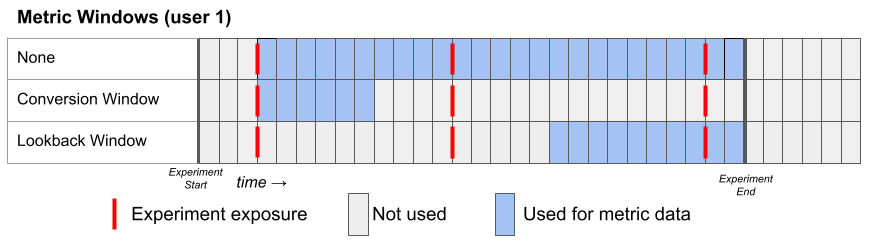
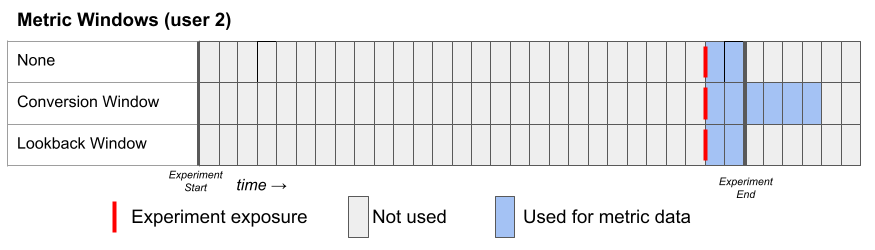
When used in an experiment, we only consider rows of a Metric where the timestamp is greater than or equal to the first time the user was exposed to the experiment. In other words, if someone purchases something before seeing your experiment, it won’t be included in the analysis. This behavior is ideal for the vast majority of metrics, but you can change it with the Metric Delay setting if desired (see below). There are three window settings one can use to configure the metric date window. Each of them defines the lower and upper date range of the metric to use for each user:- None (default)
- Lower bound: user’s first exposure plus the metric delay
- Upper bound: experiment end date
- Conversion Window
- Lower bound: user’s first exposure plus the metric delay
- Upper bound: the lower bound + the length of the conversion window
- Lookback Window
- Lower bound: the experiment end date minus the lookback window OR the user’s first exposure plus the metric delay, whichever is later
- Upper bound: experiment end date
Metric Delay
Conversions within the first X hours of being put into an experiment are ignored (default =0). This is useful for metrics like “day 2 retention”. In that case, if your underlying table reports whether a user is retained on any given day, you could set a metric delay to 24 hours.
Negative metric delays
The metric delay can also be negative to include some conversions before a user is put into an experiment. For example, a value of-2 would mean conversions up to 2 hours before will be included. You might be wondering when this would ever be useful.
Imagine the average person stays on your site for 60 seconds and your experiment can trigger at any time.
If you just look at the average time spent after the experiment, the numbers will lose a lot of meaning. A value of 20 seconds might be horrible if it happened to someone after only 5 seconds on your site since they are staying a lot less time than average. But, that same 20 seconds might be great if it happened to someone after 55 seconds since their visit is a lot longer than usual.
Over time, these things will average out and you can eventually see patterns, but you need an enormous amount of data to get to that point.
If you set the metric delay to something negative, say -0.5 (30 minutes), you can reduce the amount of data you need to see patterns. For example, you may see your average go from 60 seconds to 65 seconds.
Keep in mind, these two things are answering slightly different questions.
How much longer do people stay after viewing the experiment? vs How much longer is an average session that includes the experiment?.
The first question is more direct and often a more strict test of your hypothesis, but it may not be worth the extra running time.
Bayesian Priors
Your organization can set default priors for Bayesian analyses that are used by all metrics. However, you can also set metric specific priors by opening the Edit Metric modal from the Metric page, clicking on Advanced Settings, and turning on the metric override. This will allow you to set a custom prior for that metric. Additionally, you can use experiment metric overrides to further customize these priors for each experiment. You can read more about Bayesian priors on our statistical details page.Auto Generate Metrics
When using GrowthBook with certain event trackers, we may be able to generate metrics for you automatically by identifying the unique events tracked by your event tracker. This is currently only supported for a few event trackers (listed below), but we are working to expand this list. If you are using one of the supported event trackers and would like to see what metrics we can create for you, head to theMetrics page in GrowthBook and select the Discover Metrics button.
When querying your datasource to identify unique events, we’re currently only looking at events in the last 7 days.
Supported Event Trackers
- Segment
- Rudderstack
- Google Analytics 4 (GA4)
- Amplitude
Examples
Let’s walk through some examples of creating binomial, count, and retention metrics with GrowthBook. For all of the metrics below, let’s pretend we have some table calledevents, which has one row per event tracked to your warehouse. For each row we have the following columns:
user_id- the id of the usertimestamp- the time the event was countedevent_name- the name of the event, we’ll focus on ‘purchase’ as a key event typesvalue- the total value of the event, in this case the total value of a purchase
| Name | Metric Type | SQL | Aggregation | Denominator | Metric Delay | Metric Window |
|---|---|---|---|---|---|---|
| Any Purchase | Binomial | SELECT user_id, timestamp FROM events WHERE event_name = ‘purchase’ | n/a | 0 | ||
| Number of Purchases | Count | SELECT user_id, timestamp, 1 as value FROM events WHERE event_name = ‘purchase’ | default (SUM) | 0 | ||
| Order Value | Revenue | SELECT user_id, timestamp, value FROM events WHERE event_name = ‘purchase’ | default (SUM) | 0 | ||
| Average Order Value | Revenue (ratio) | SELECT user_id, timestamp, value FROM events WHERE event_name = ‘purchase’ | default (SUM) | Number of Purchases | 0 | |
| 7-Day Retention | Binomial | SELECT user_id, timestamp FROM events | n/a | 24*7=144 hours | ||
| Active User Last 14d | Binomial | SELECT user_id, timestamp FROM events | n/a | 0 | Lookback - 14 day |
Migrating Legacy Metrics to Fact Tables
We recommend using Fact Tables for all new metrics. Legacy metrics will continue to be supported, but they will not get any new features. If you would like to migrate existing legacy metrics to Fact Tables, there are a few differences to be aware of.Reusable Definitions
Metric definitions have been split up into a few different reusable pieces. It’s a couple more steps to create your first metric, but it should drastically simplify adding subsequent ones and building out your metric library.- The SQL and supported user identifiers are defined in the Fact Table
- The display formatting (e.g. currency vs duration) is attached to a Fact Table Column
- Any WHERE clauses for metrics are defined as Filters (e.g.
device_type = 'mobile')
Metric SQL
Before, SQL for a metric would select at most 1 numeric column and it had to be namedvalue. With Fact Tables, you can have as many numeric columns as you want and there are no naming restrictions. This allows you to have 1 complex SQL definition be re-used across many related metrics.
Also, Custom aggregations are no longer supported. Fact Tables only support a few pre-defined aggregations - COUNT and SUM (we may add more in the future). Using these pre-defined aggregations greatly simplifies the queries we run and enables advanced performance and cost optimizations.
Metric Types
Metric types have changed.- Binomial Metrics have been renamed to Proportion Metrics
- Count, Duration, and Revenue are all now just Mean Metrics (the display formatting is controlled by the Fact Table columns now)
- Instead of just adding a denominator to any metric, there is now a dedicated type for Ratio Metrics.