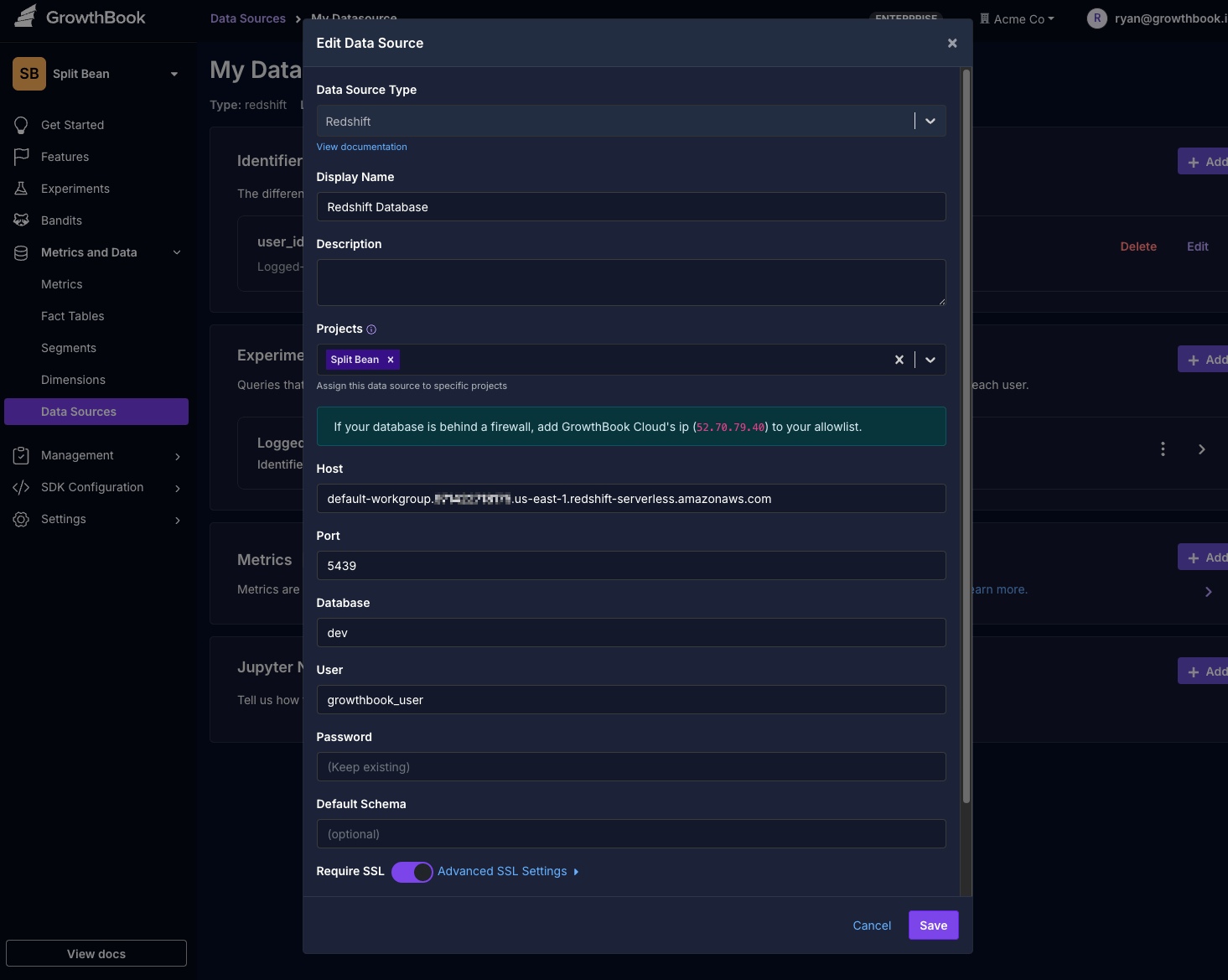
Connecting Amazon Redshift to GrowthBook allows you to analyze experiment data and metrics directly from your data warehouse.Documentation Index
Fetch the complete documentation index at: https://growthbook-preview.mintlify.app/llms.txt
Use this file to discover all available pages before exploring further.
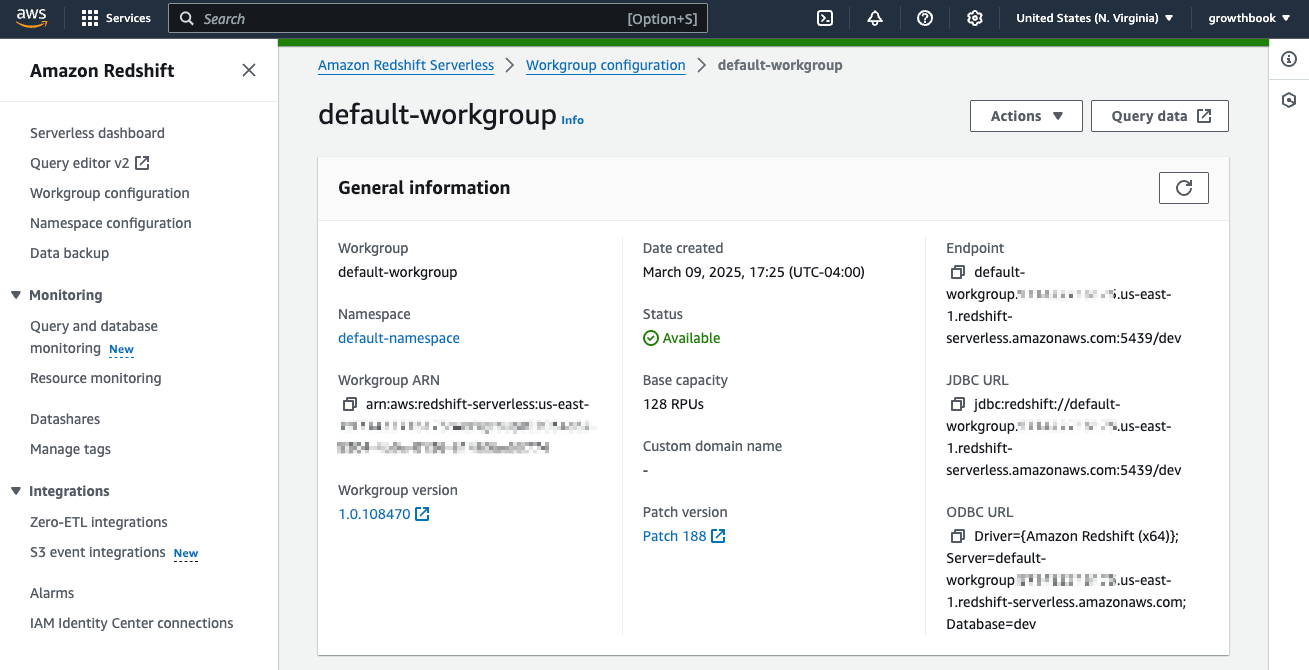
1: Find Connection Details
- In the AWS Management Console, navigate to Amazon Redshift → Serverless.
- Click on Workgroup configuration, select your workgroup.
- Under General information, locate the Endpoint, which looks like this:
default-workgroup.1234567890.us-east-1.redshift-serverless.amazonaws.com:5439/dev
This string comprises the following parts:
- Host:
default-workgroup.1234567890.us-east-1.redshift-serverless.amazonaws.com - Port:
5439 - Database Name:
dev
2: Configure Security settings
- Go to AWS Console → Amazon Redshift → Serverless → Workgroups.
- Click on your Workgroup and scroll to Network and Security.
- Click Edit and check Turn on Publicly accessible.
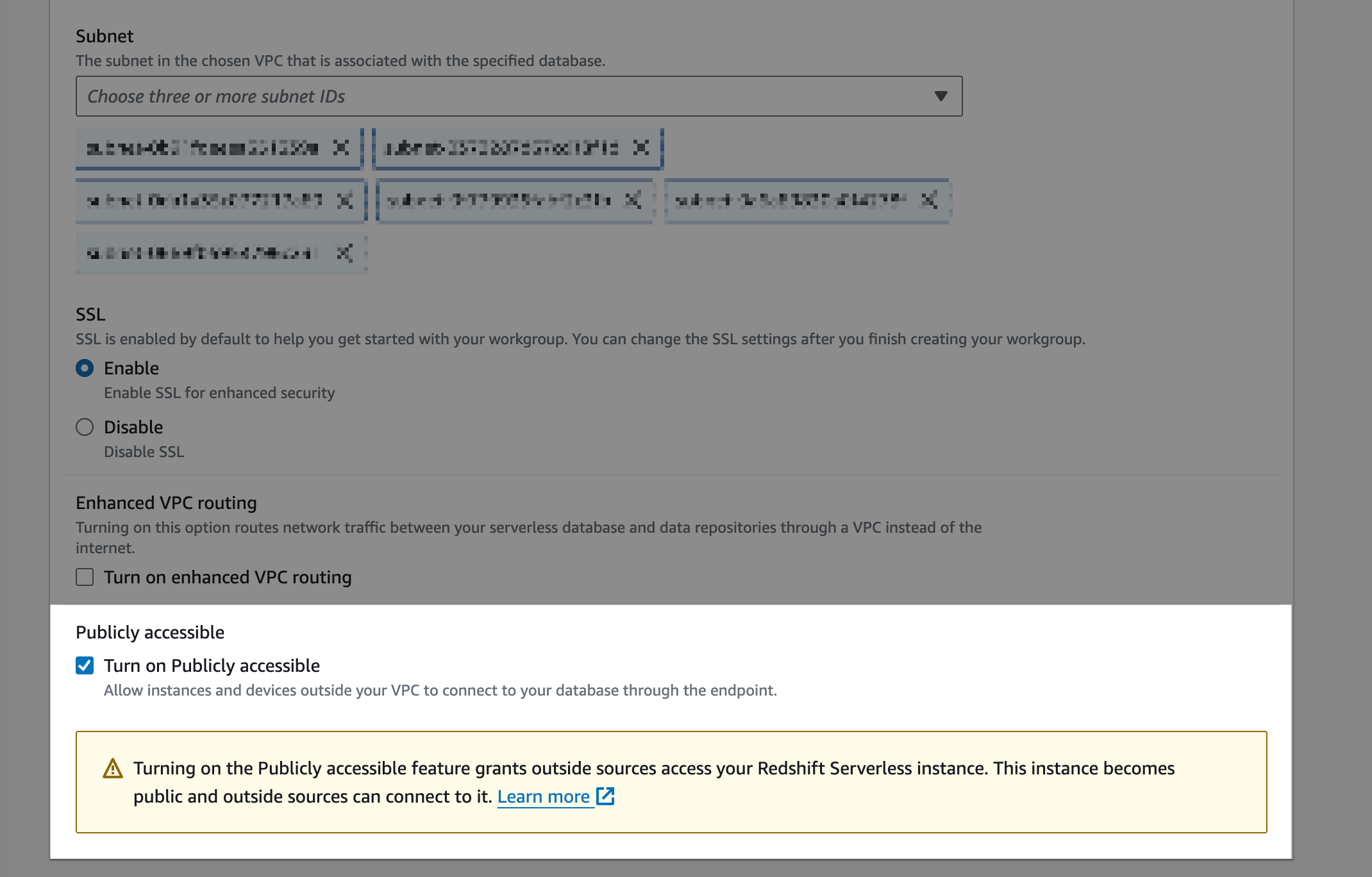
- Click Save Changes.
- Click on the VPC security group link.
- Select the Security Group matching your Workgroup.
- Edit Inbound Rules:
- Protocol: TCP
- Port: 5439
- Source: 52.70.79.40/32 (GrowthBook’s IP)
- Click Save Changes.
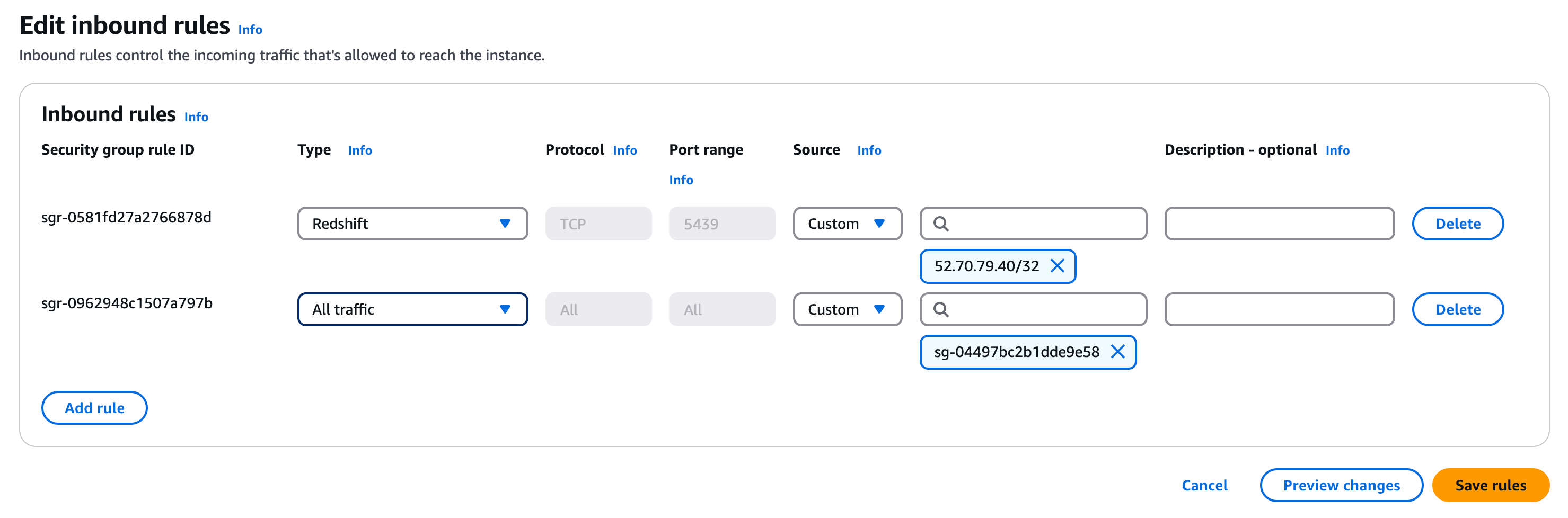
Ensure your security group settings are restrictive.
3: Create a Read-Only User
To prevent unauthorized changes, use a dedicated read-only user for GrowthBook.- Open AWS Query Editor or your preferred SQL client.
- Run the following:
- Use this user when connecting GrowthBook.
4: Add Redshift as a Data Source in GrowthBook
- In GrowthBook, go to Settings → Data Sources.
- Click Add Data Source and choose Redshift.
-
Enter the details from Step 1:
- Host: (Your Workgroup Endpoint for Serverless or Cluster Endpoint for Provisioned)
- Port:
5439 - Database: (Your database name, e.g.,
dev) - User:
growthbook_user - Password: (Your secure password)
- Require SSL: Recommended but may depend on your Redshift setup.
- Click Next to test the connection.