

GrowthBook makes it easy to do A/B testing using Matomo as an event source. This guide shows you how to set up GrowthBook to work with self-hosted Matomo and the MySQL/MariaDB that it runs on.Documentation Index
Fetch the complete documentation index at: https://growthbook-preview.mintlify.app/llms.txt
Use this file to discover all available pages before exploring further.
1. Integrate GrowthBook’s SDK with Matomo within your application
You can follow the SDK integration guides depending on your language. We need to add theTrackingCallback call
specifically for Matomo. For this guide, we’ll use Javascript (Next.js).
Matomo lets you track custom events, and you can adjust the Event Category, Event Action, Event Name, and
Event Value. You can read more about the custom tracking call at Matomo’s documentation site.
- Event Category cannot contain any spaces.
- If Event Name is 0 or “0” it will record null.
- Event Value must be an integer.
Event Category: will have the valueExperimentViewedto isolate the exposure events.Event Action: will store the experiment key.Event Name: will store the variation id (with a prefix ofvor some other string)
We use the string prefix on the Event Name so that it is saved correctly, as
0
saves as null, but v0 works correctly. This prefix is stripped with the SQL
exposure query in step two.visitor ID
2. Add the Data Source for Matomo
From within the GrowthBook application, navigate to theData Sources page from within the Analysis section. Click on add data source and select Matomo from the list of event sources.
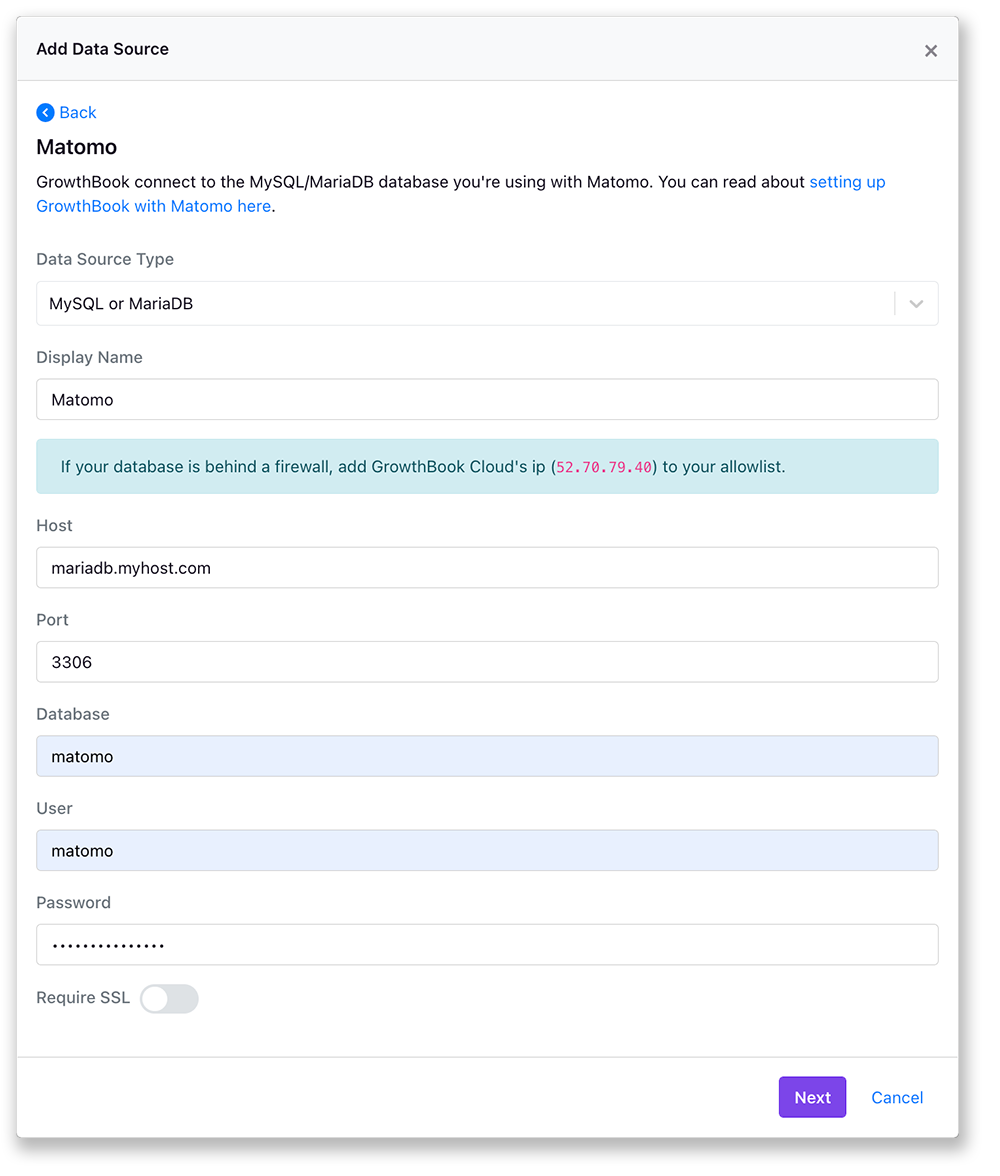
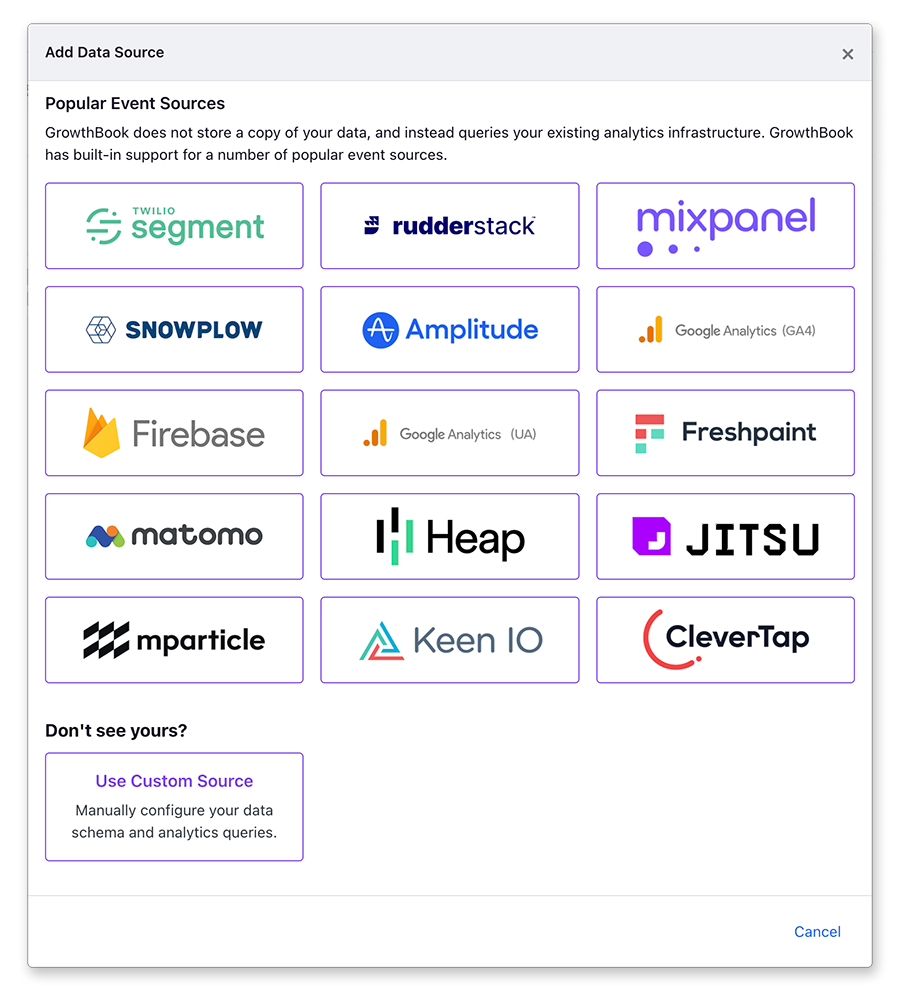 After you select Matomo, you will be prompted to connect to your MySQL/Maria database.
 Once you’ve completed the connection GrowthBook will and then you can adjust some settings specific to your instance and how you implemented the Matomo tracking code.
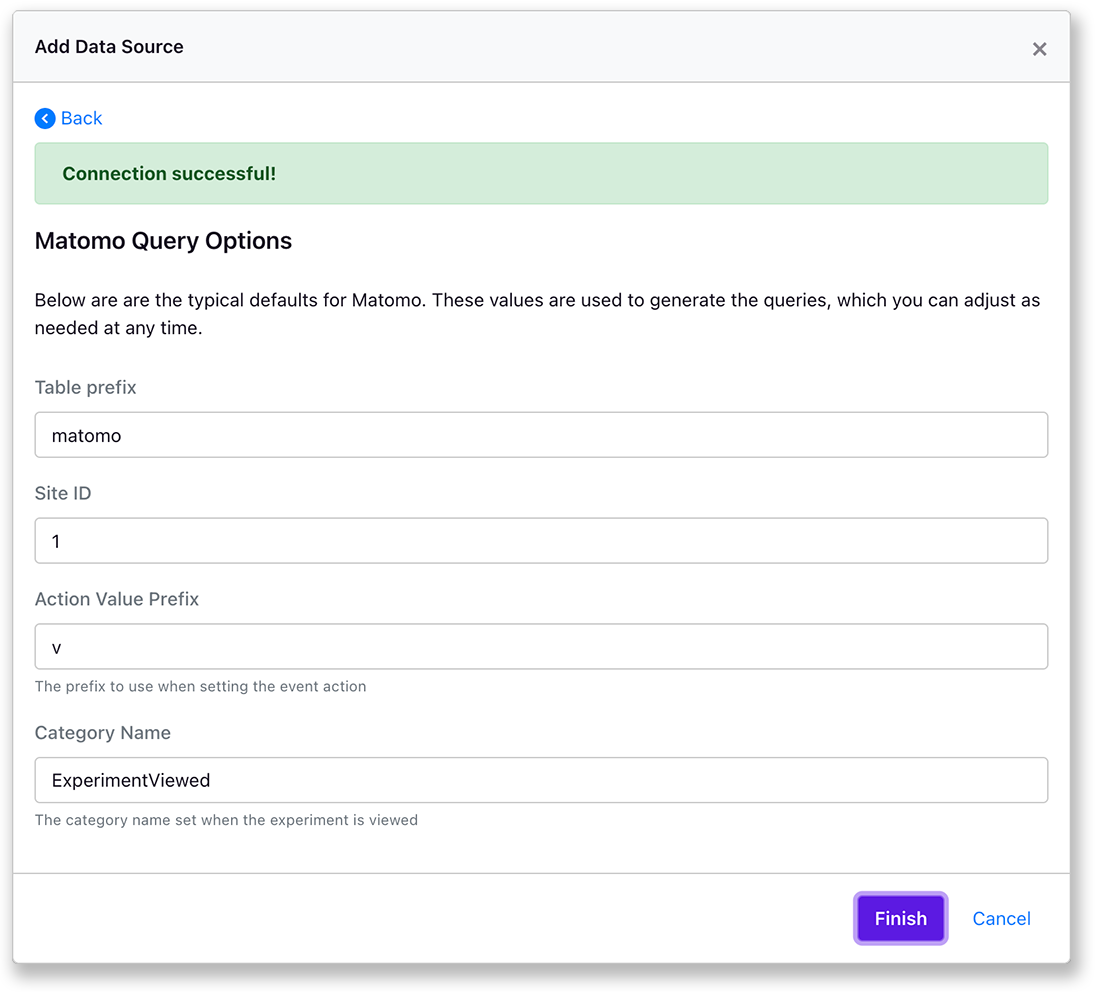 When you save, you’ll have the experiment exposure queries for anonymous and user_id set for you.
 You can test running this query directly against your database. It should return a list of experiments exposure events.
You will still need to define the metrics you want to test against from the metrics settings.
You can test running this query directly against your database. It should return a list of experiments exposure events.
You will still need to define the metrics you want to test against from the metrics settings.