

Documentation Index
Fetch the complete documentation index at: https://growthbook-preview.mintlify.app/llms.txt
Use this file to discover all available pages before exploring further.
Overview
This guide shows you how to integrate GrowthBook with Google Tag Manager (GTM) to run A/B tests and manage feature flags without having to directly modify your app’s code. This setup is ideal for:- Marketing teams managing website experiments
- CRO agencies handling multiple client websites
- Teams without direct access to website code
Prerequisites
Before starting, ensure you have:- Access to your Google Tag Manager account
- A GrowthBook account
- Basic familiarity with GTM’s interface
1. Set Up GrowthBook SDK Connection
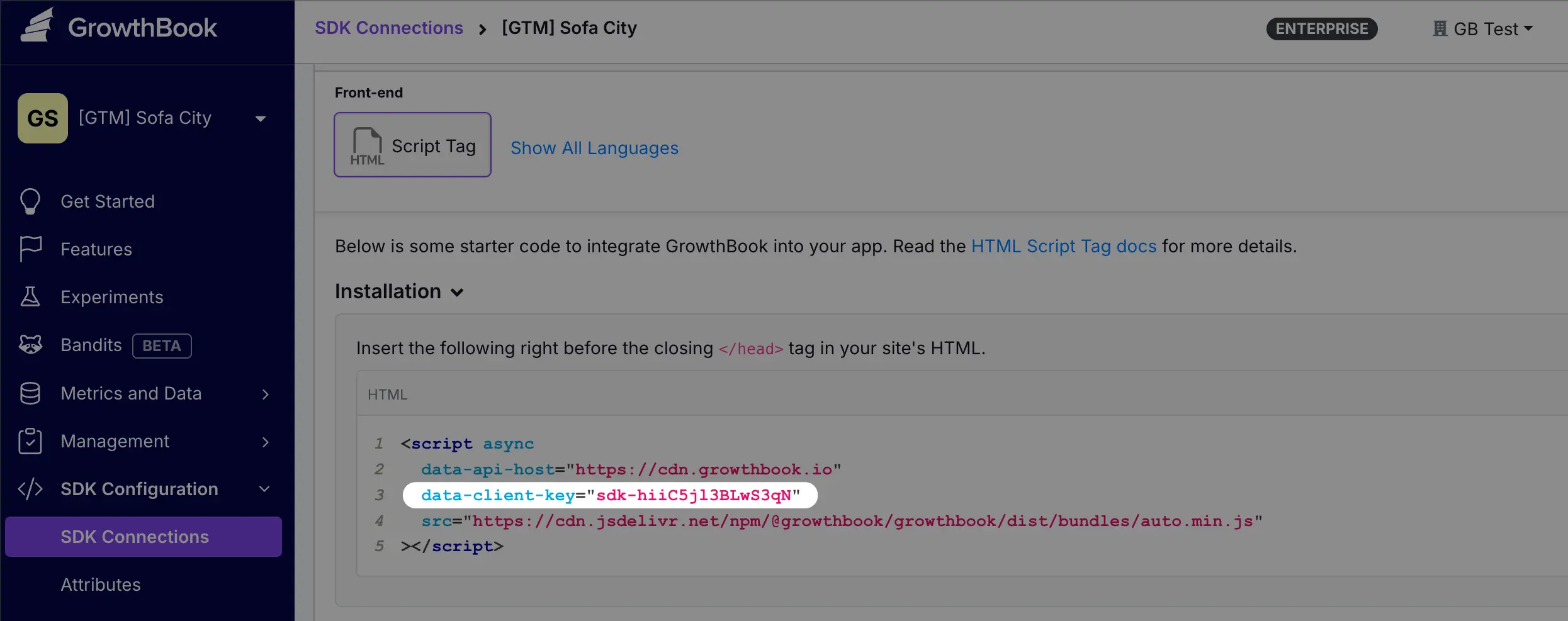
- In GrowthBook, navigate to SDK Configuration → SDK Connections
- Click Add SDK Connection
- Add a Name, choose HTML Script Tag, and click Save
- Copy the
data-client-keyvalue from the script tag. You’ll need this for the next step
2. Create GTM Tag for GrowthBook
- Open your GTM workspace
- Click Tags in the left sidebar
- Click New to create a tag
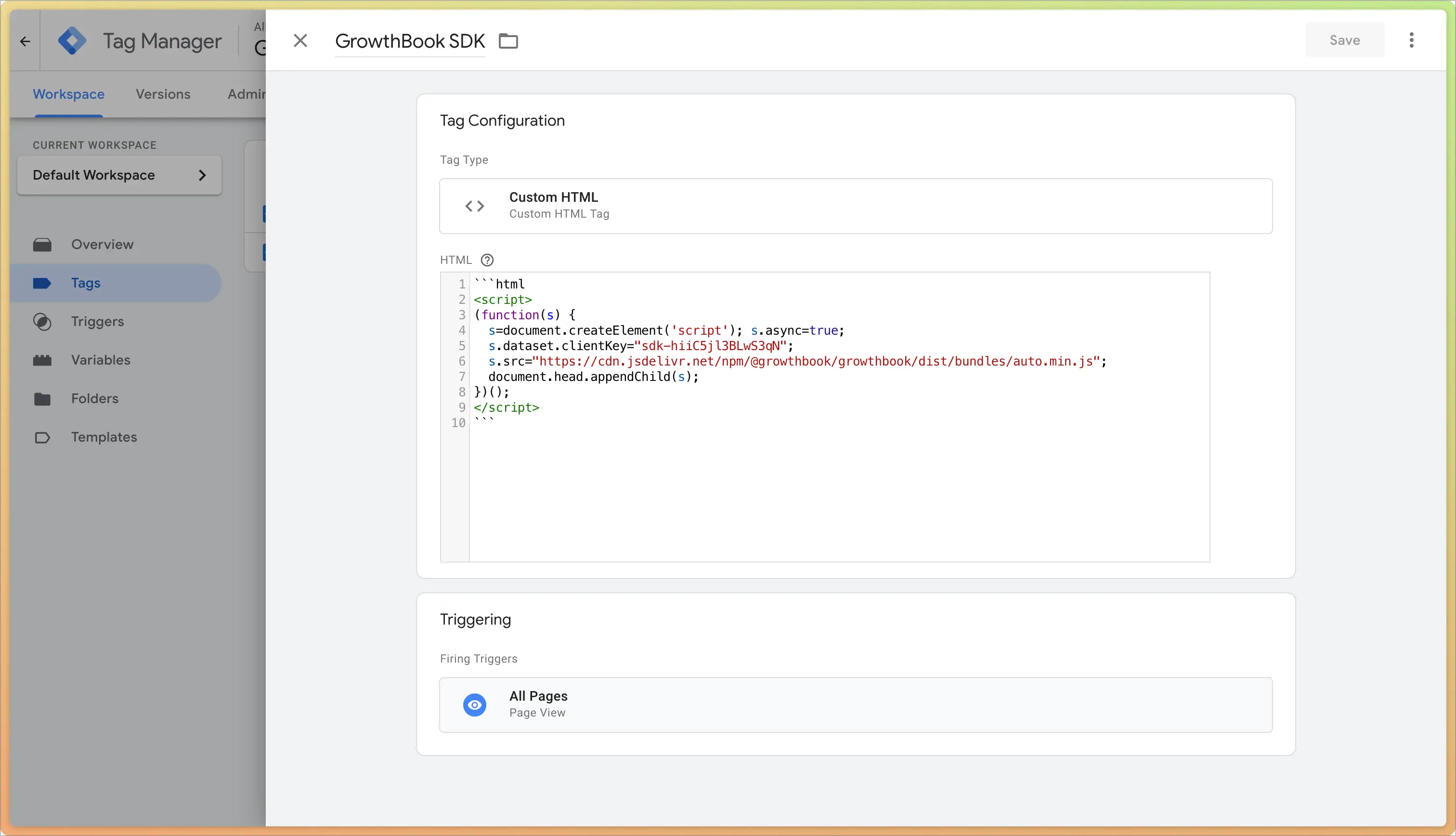
- Click Tag Configuration and use Custom HTML as the tag type
- Paste the following script tag, replacing
YOUR_CLIENT_KEY_HEREwith the value from the previous step:
- Click Triggering and choose the pages where you want to run this tag. Use All Pages to load it everywhere
- Click Save and call your tag “GrowthBook SDK” or similar
3. Use Feature Flags and A/B Experiments
It’s possible to use GrowthBook in your GTM setup. This allows you to control feature flags and experiments without needing to modify your website code.If you’re planning to use the Visual Editor, URL redirects, or to run experiments in code, skip ahead to the next section ⏭️
show-discount to run an A/B test to show and hide an item’s discount. New to feature flags in GrowthBook? Learn more about creating them and A/B tests.
Next, we’ll use GTM to apply the feature flag to your website:
- Create another Custom HTML tag in your workspace
- Set the firing trigger to the pages you want to run this on
- Use the following code as a starting point:
show-discount feature flag to run an A/B experiment. When the experiment evaluates to true, we add a CSS class to the price element on the page.
As seen in the image below, the control element shows the price, while the variation shows the original price with a strikethough and the discounted price in red. We can run this entire experiment straight from GTM, without needing to touch the website code!

4. Tracking via DataLayer and GTM
To track experiment views, we use thedataLayer to capture experiment data. Whenever an experiment is viewed, we send an event with data like this:
You’ll need to connect GrowthBook to BigQuery to analyze your experiment data. See our guide on configuring GrowthBook with BigQuery for more information.
Create DataLayer Variables
To capture experiment data from thedataLayer, create 2 new variables in GTM:
- Go to Variables in the left sidebar
- Click New under User-Defined Variables
- Create 2 variables:
- Experiment ID
- Click Variable Configuration
- Select Data Layer Variable
- Enter
experiment_idas the Data Layer Variable Name - Name the variable something descriptive like “Experiment ID”
- Click Save
- Variation ID
- Repeat the these steps but use
variation_idas the Data Layer Variable Name and call it something like “Variation ID”
- Repeat the these steps but use
- Experiment ID

Create Custom Event Trigger
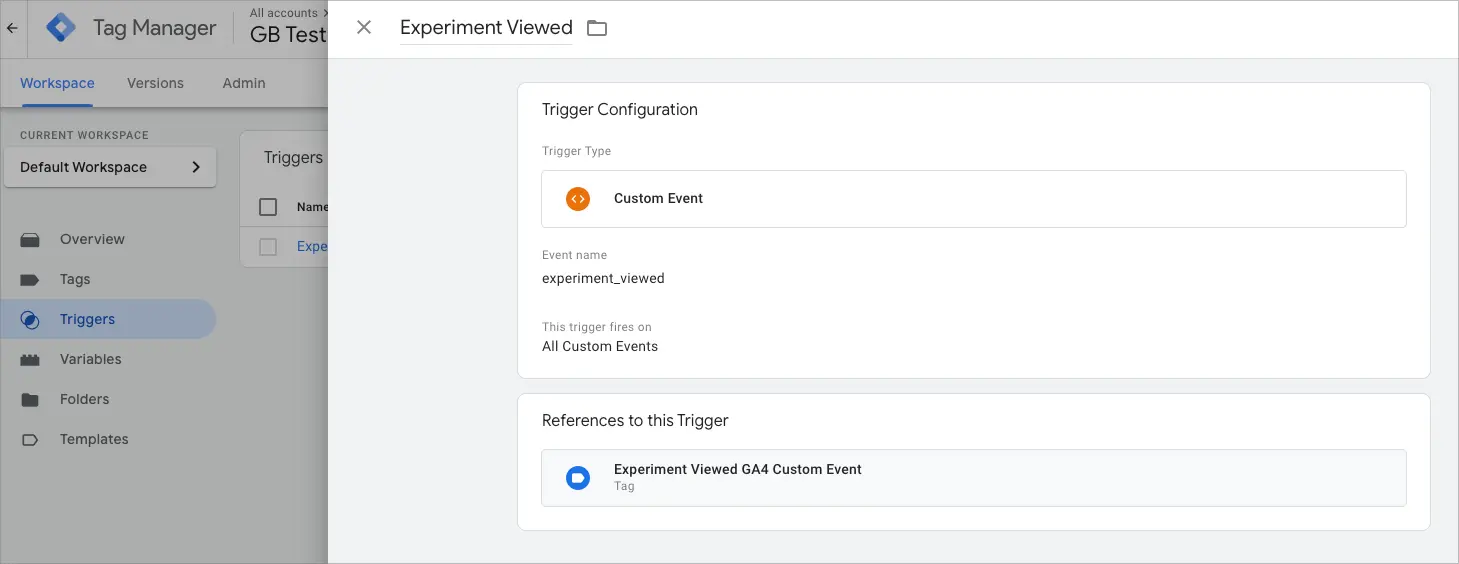
This custom trigger tells GTM when to fire the GA4 tag based on theexperiment_viewed event.
- Go to Triggers in the left sidebar
- Click New and Trigger Configuration
- Choose Custom Event as the trigger type
- Name the trigger “Experiment Viewed Event” or similar
- Enter
experiment_viewedas the Event Name - Set the trigger to fire on All Custom Events
- Click Save
Create GA4 Configuration Tag
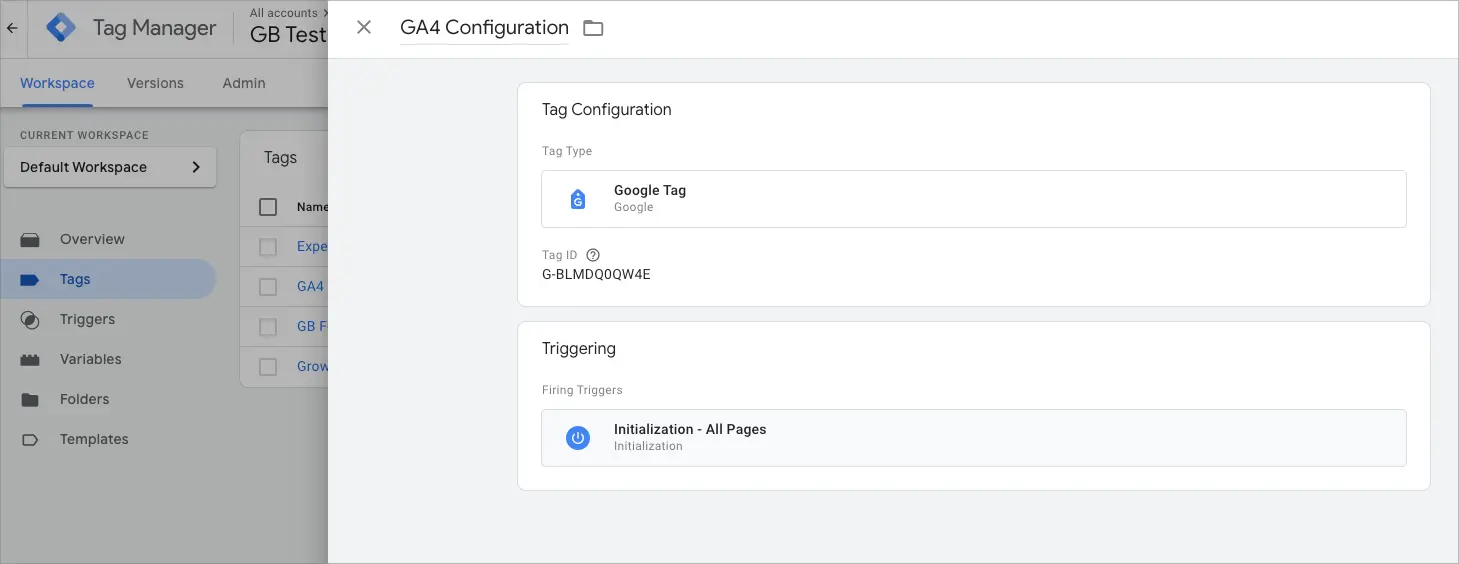
Let’s connect GTM to GA4. (Skip this step if you’ve already configured GA4 in your GTM container.)- Create a new tag and select Google Analytics as the type
- Choose Google Tag
- Enter your GA4 Measurement ID
- Add Initialization - All Pages for the trigger
- Name the tag something like “GA4 Configuration” and save it
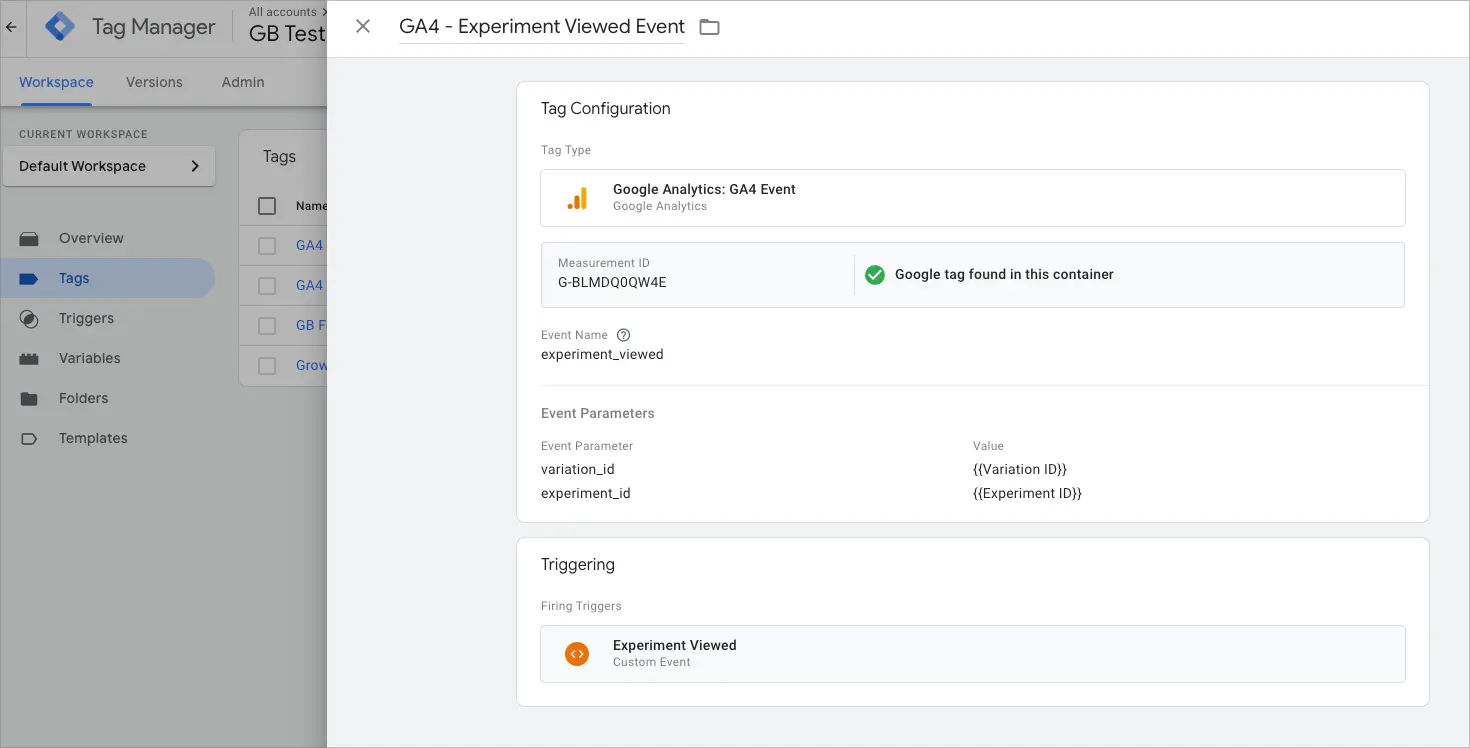
Create GA4 Event Tag
Last step! Create a tag that sends theexperiment_viewed event data to GA4.
- Create a new tag in GTM
- Select Google Analytics: GA4 Event
- Configuration:
- Measurement ID: Use your GA4 ID (or reference the GA4 Configuration tag)
- Event Name:
experiment_viewed - Event Parameters:
- Event Parameter:
experiment_id - Value:
{{Experiment ID}} - Event Parameter:
variation_id - Value:
{{Variation ID}}
- Event Parameter:
- Triggering: Select the Experiment Viewed Event trigger
- Name the tag (e.g., “GA4 - Experiment Viewed Event”)
- Save the tag
Testing Your Setup
-
In GTM:
- Click Preview in the top right
- Enter your website URL
- Click Start
-
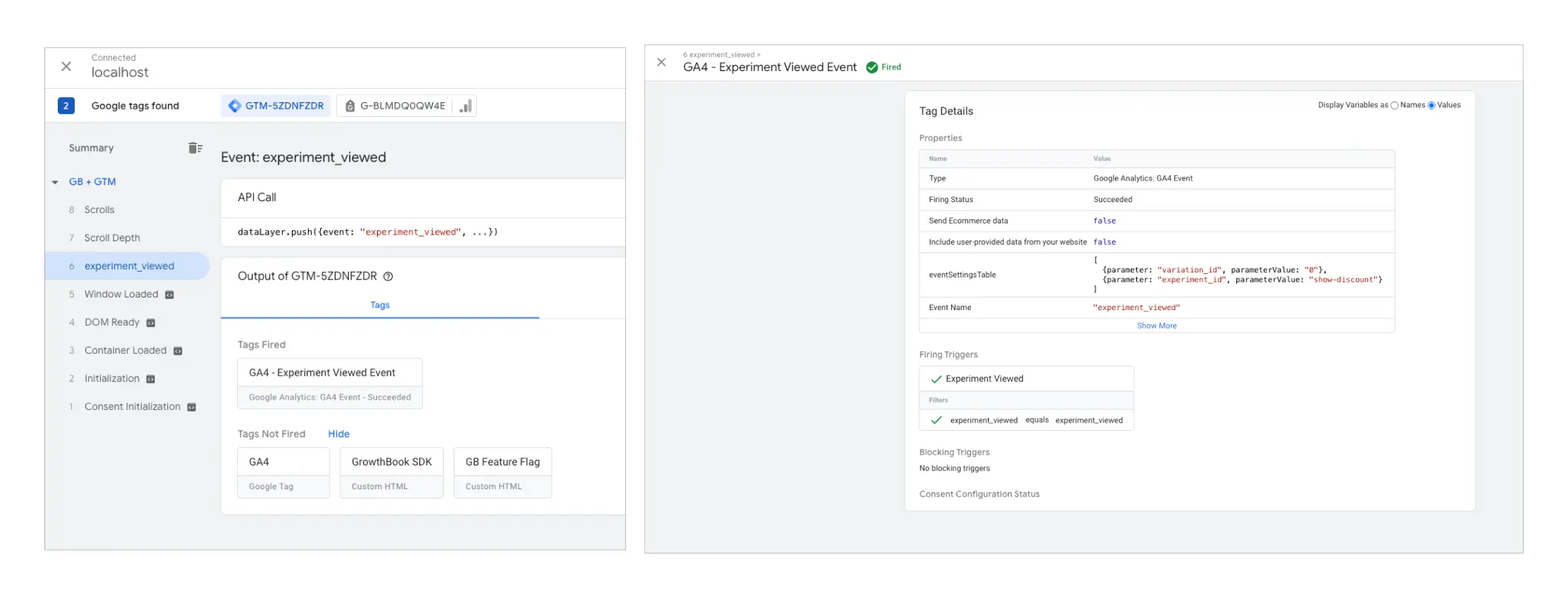
In Preview Mode:
- Look for the GrowthBook SDK tag firing
- Verify the
experiment_viewedevent appears - Check that the event parameters contain the correct experiment and variation IDs
- In GA4 (may take 24-48 hours to appear):
- Go to Real-Time reports
- Look for the
experiment_viewedevent - Verify the parameters are being received correctly
Conclusion
You’ve successfully integrated GrowthBook with Google Tag Manager to run A/B tests and manage feature flags on your website. This setup allows you to control experiments without needing to modify your website code directly ✊Next Steps
- Check out our guide for connecting GrowthBook to GA4 and BigQuery
- For other analytics tools, see our guide on connecting to your data warehouse