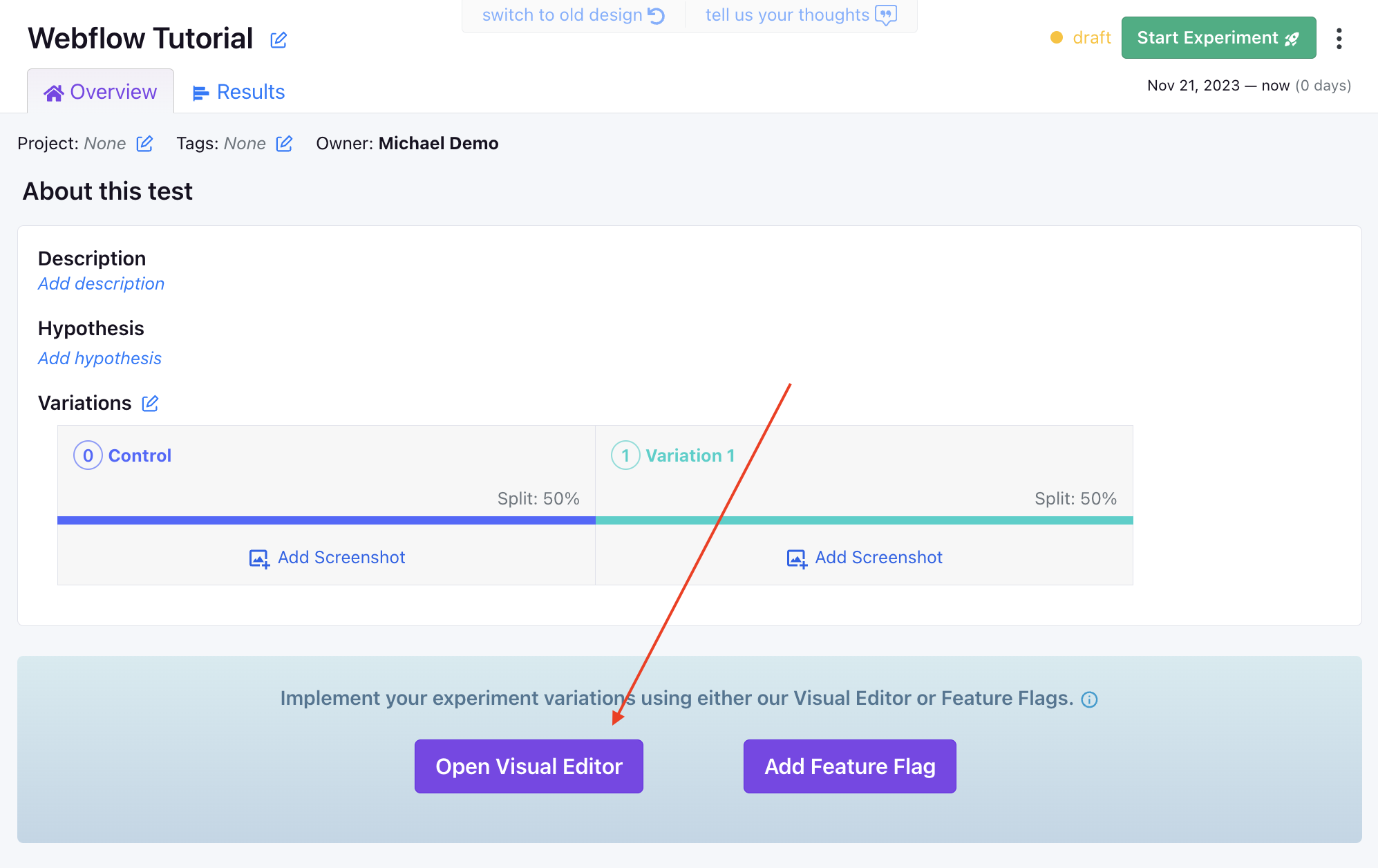
Unleash the power of experimentation with GrowthBook to supercharge your Webflow site—no coding skills required!Documentation Index
Fetch the complete documentation index at: https://growthbook-preview.mintlify.app/llms.txt
Use this file to discover all available pages before exploring further.
This guide walks you through creating experiments using the GrowthBook Visual Editor, which requires a
Pro subscription. Learn More.Let’s Get Started
Step 1: Create a GrowthBook SDK Connection
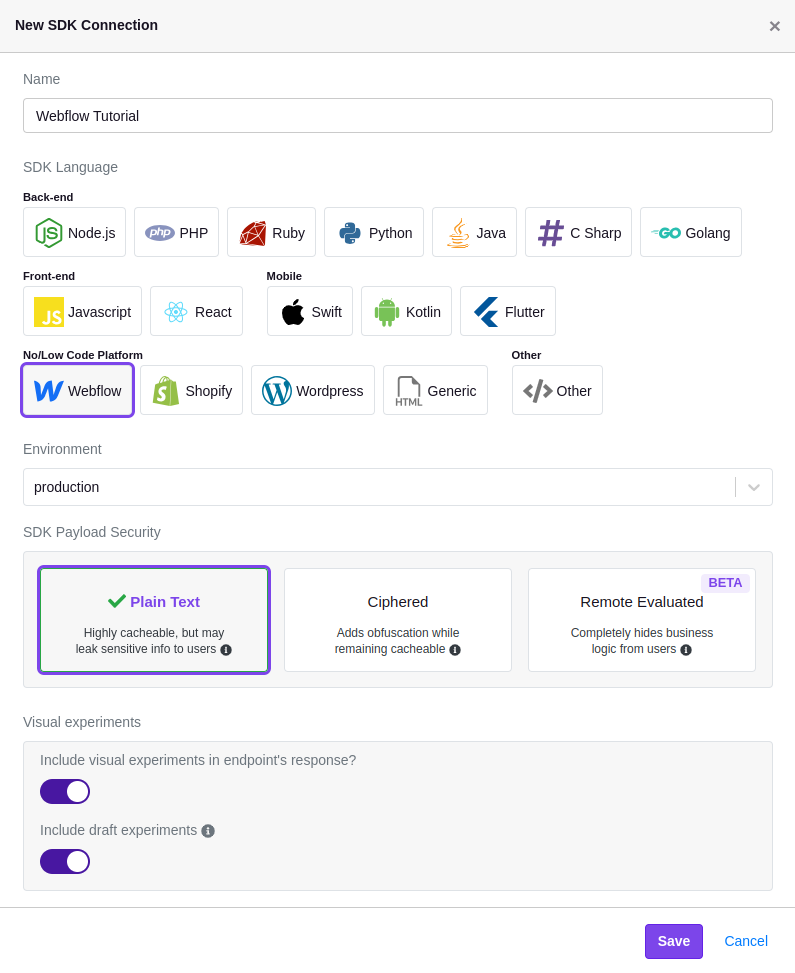
To connect your GrowthBook account to Webflow, you’ll need to create a new SDK Connection and select theWebflow option. Before saving, confirm that you’ve enabled the toggles for Include visual experiments in endpoint's response? and Include draft experiments.
Step 2: Add GrowthBook to Your Webflow Site
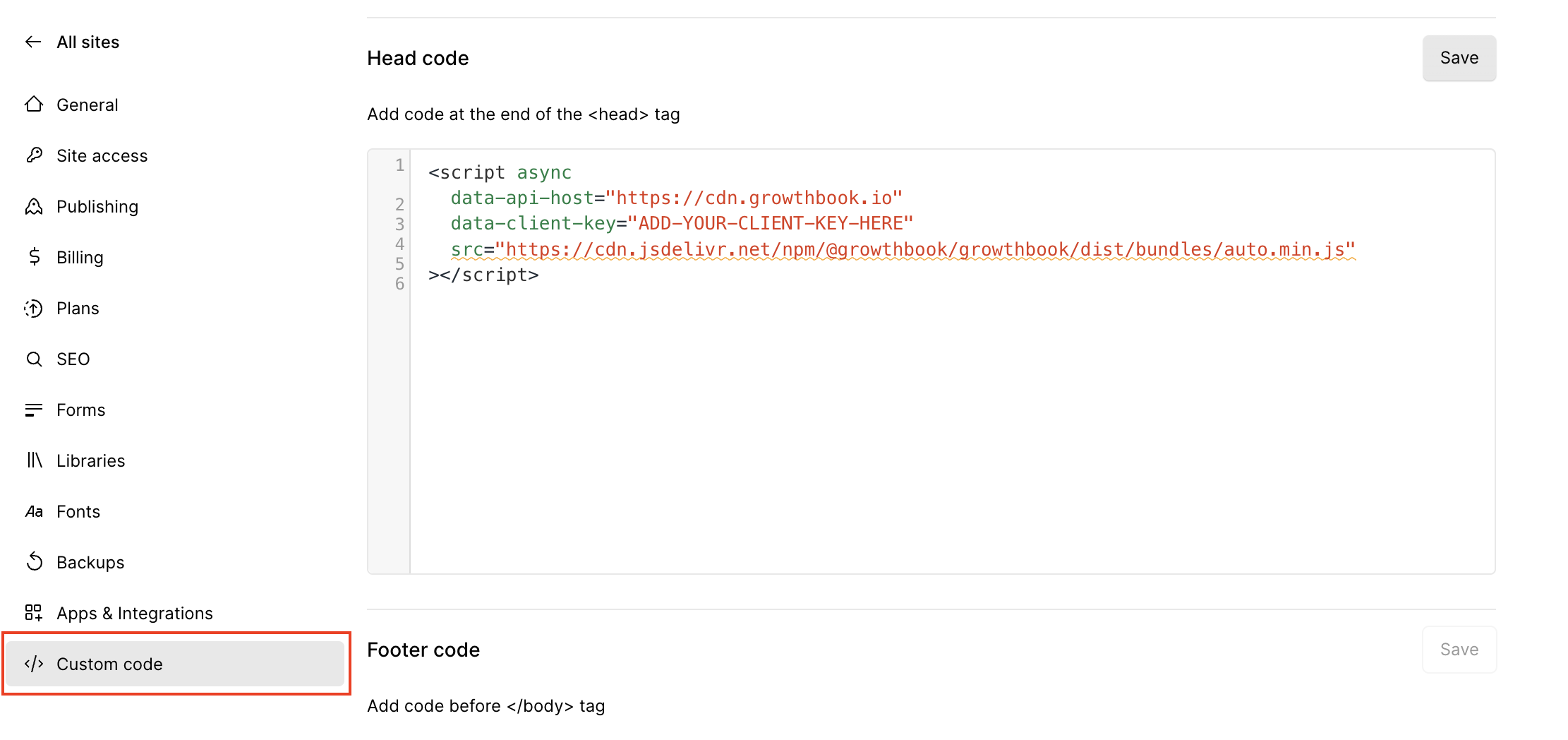
Once the SDK Connection is created, you should see a code snippet that you need to add to your site. In a new window, log into your Webflow account, navigate to your site’s settings, and select theCustom Code tab.
Find the “Head Code” section, and paste in the code snippet from GrowthBook. It should look something like this:
When a user views an experiment, the code above will fire an event that tracks which variation the user saw. If you have Google Analytics 4 (GA4) or Segment installed on your site, you don’t have to do any additional configuration. If, however, you need to use a different analytics provider, you can follow our guide here.
Step 3: Install the GrowthBook DevTools Browser Extension
The GrowthBook DevTools browser extension enables you to use the Visual Editor to update your Shopify website content. Install it from the Chrome Web Store (Chrome) or from addons.mozilla.org (Firefox). Next, open the DevTools extension by clicking the extension icon.- Find and click on the cog icon ⚙️.
- Enter your Personal Access Token (available in GrowthBook from the main dropdown menu → Personal Access Tokens).
- Click “Save”. The GrowthBook browser extension is all set up!
Step 4: Create a GrowthBook Visual Editor Experiment
If you have questions about how to use the Visual Editor, check out our guide here.